

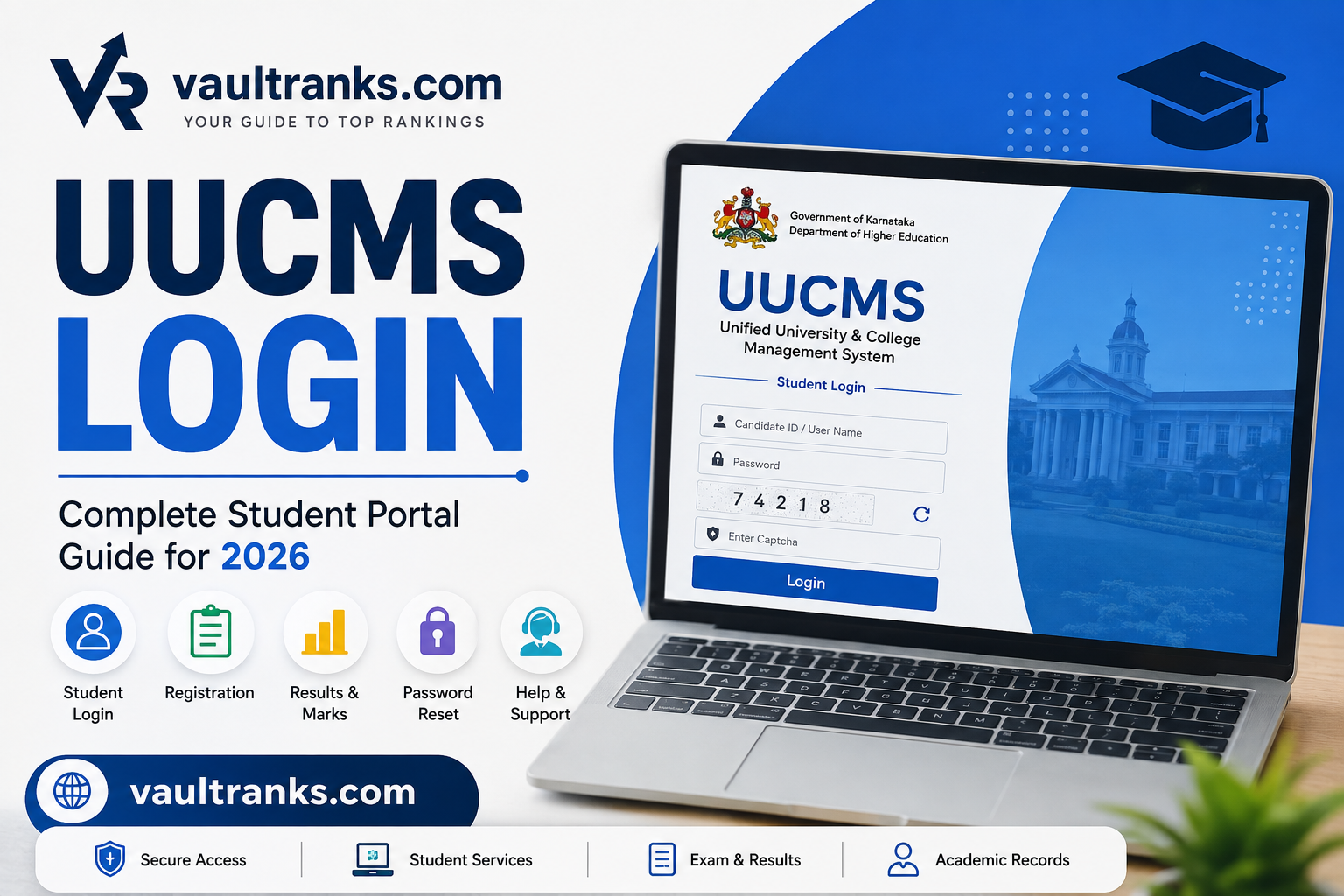
UUCMS Login gives students, faculty members, colleges, and university staff in Karnataka access to important academic services through one digital platform. Students can use the portal for registration, academic records, course-related services, examinations, internal marks, results, and other university activities.
UUCMS stands for Unified University & College Management System. It works under the Department of Higher Education, Government of Karnataka, and aims to bring major higher-education activities into one online system.
For students, knowing how to use the portal correctly can save time during admission, semester registration, examinations, and result periods. This guide explains the UUCMS student login process, Candidate ID, registration, results, internal marks, password recovery, common errors, and other important services.
What is UUCMS?
UUCMS is a digital platform created to manage higher-education activities in Karnataka. The full name is Unified University & College Management System.
The system connects students, colleges, universities, faculty members, and administrators through a common platform. Instead of handling every academic process separately, users can manage many activities through UUCMS.
Students may use the system from admission and registration through different stages of their university education.
Full Form of UUCMS
The full form of UUCMS is:
Unified University & College Management System
The platform forms part of Karnataka’s effort to make higher-education administration more digital and organized.
The system allows institutions to maintain student and academic information in one place. It also helps students access services without repeatedly visiting different offices for routine tasks.
Purpose of the UUCMS Portal
The main purpose of UUCMS is to simplify university and college administration. It connects academic processes that previously required separate systems or paperwork.
Depending on the institution and academic process, the portal can support admissions, student registration, course management, examinations, internal assessment, academic records, and results.
Digital records can also help colleges and universities manage student information more consistently.
Who Can Use UUCMS?
UUCMS is not limited to students. Different users receive different levels of access based on their roles.
Major user groups include:
- Students
- Faculty members
- College administrators
- PG centres
- University administrators
- State-level administrators
Students usually receive access to services related to their own academic profile, while faculty and administrators receive tools required for institutional work.
UUCMS Login – Complete Student Login Guide
Students need valid credentials before accessing their accounts. Your exact username can depend on your stage in the registration and admission process.
A Candidate ID can act as the username during the registration process. Students who have received their final Student Registration Number may later need to use the credentials provided for that stage.
Always follow the latest instructions displayed by your institution and the UUCMS portal.
Requirements for UUCMS Login
Before attempting to sign in, keep the necessary information ready.
You may need:
- Candidate ID or applicable username
- UUCMS password
- Correct captcha code
- Registered mobile number
- Access to registered email when required
- Stable internet connection
Enter your credentials exactly as provided or created. Incorrect details can prevent access to the student dashboard.
How to Access the UUCMS Login Portal
Open the official UUCMS portal in a modern web browser. On the login screen, select the appropriate user type.
Students should choose the Student option rather than University, College/PG Center, or State Admin.
The page will then display the relevant login fields. Enter your credentials and captcha carefully before continuing.
Step-by-Step UUCMS Student Login Process
The basic student login process is simple.
- Open the official UUCMS portal.
- Select Student as the user type.
- Enter your Candidate ID or applicable username.
- Enter your password.
- Type the displayed captcha correctly.
- Click the Login button.
- Wait for your student account to open.
Once logged in, check that the name and academic information shown on your account belong to you.
Avoid saving your password on computers that other people use.
Understanding the UUCMS Student Dashboard
The dashboard works as the main control area of the student account. Available options can differ according to the student’s institution, academic stage, and permissions.
Students may find sections connected with registration details, profile management, applications, academic information, examinations, courses, or results.
Become familiar with the menu after your first login. It will make future tasks easier.
UUCMS Login Official Website
Students should access UUCMS through the official Karnataka government portal rather than random third-party websites.
Search engines may display guides, result pages, and informational websites alongside the actual portal. These pages may explain the process but should not receive your UUCMS password.
How to Identify the Official UUCMS Portal
Look carefully at the website address and page branding before entering personal information.
The genuine UUCMS service is associated with the Government of Karnataka and Department of Higher Education.
Be careful with pages that ask for unusual payments, banking information, or unnecessary personal data simply to provide a login.
UUCMS Portal Login Details
Students normally need a valid username and password. A Candidate ID is generated during the registration process and can serve as the username at that stage.
Students who later receive a Student Registration Number should follow the login instructions associated with those credentials.
Because account stages can differ, do not assume that another student’s username or password format will apply to your account.
UUCMS New Student Registration
Registration creates a student’s record within UUCMS and connects that record with later academic processes.
One important point is that registration and final student admission credentials are not always the same stage.
Students should follow the process provided by their college and the current instructions shown in UUCMS.
Who Can Register on UUCMS?
Students applying to participating colleges, universities, courses, or programmes may need to complete the required UUCMS registration process.
Eligibility depends on the admission rules for the chosen programme and institution.
Do not create duplicate records simply because you cannot remember an earlier Candidate ID. Recover your existing account or contact your institution instead.
Step-by-Step UUCMS Registration Process
The exact screens may change, but registration generally involves entering student and educational information.
A typical process may include:
- Open UUCMS.
- Choose the new-user registration option when applicable.
- Enter personal information.
- Provide contact information.
- Complete previous education details.
- Select the required programme or institution details.
- Upload documents where requested.
- Review the entered information.
- Save or submit the application.
- Keep the generated Candidate ID safely.
Once the Personal Details stage is completed successfully, the system can generate a Candidate ID.
Information Required for Registration
Students should keep accurate personal and academic information ready before beginning.
Common information may include:
- Full name
- Date of birth
- Gender
- Mobile number
- Email address
- Address
- Previous educational qualification
- Board or university information
- Marks or grades
- Programme details
- Category information where applicable
Enter information exactly as it appears on official records.
Documents Required for UUCMS Registration
Required documents depend on the programme, admission type, and institution.
Students may be asked for documents such as previous academic marks cards, identity-related documents, photographs, certificates, and category or eligibility documents when applicable.
Use clear and readable copies when documents need to be uploaded.
What Happens After Registration?
After the required personal information is saved, UUCMS can generate a Candidate ID. This ID is important because it identifies the candidate in the system.
Students should save the Candidate ID immediately.
After admission and approval processes are completed, the student may receive further registration information or login credentials through the registered mobile number or email.
What is UUCMS Candidate ID?
A UUCMS Candidate ID is a unique identifier generated for a candidate during registration.
During the relevant stage, it acts as the username for accessing the UUCMS account.
The Candidate ID is important for continuing an incomplete registration, managing an application, and accessing services connected with the candidate account.
How to Get Your Candidate ID
The Candidate ID is generated after the required registration information, particularly the Personal Details section, is completed successfully.
Students should note it when it appears on the screen.
UUCMS may also communicate important account information through the registered mobile number or email address.
How to Recover a Forgotten Candidate ID
First check old SMS messages and emails connected with your registration.
If you still cannot find the username, use the Forgot Username option when available on the UUCMS login page.
Indian candidates may be asked to verify their registered mobile number. Non-Indian candidates may use their registered email according to the applicable recovery process.
If recovery fails, contact your college or UUCMS support.
Candidate ID vs Student Registration Number
Students often confuse these two numbers.
A Candidate ID is generated during the candidate registration process and can work as the username at that stage.
A Student Registration Number is associated with the student after the relevant admission and approval process. Login credentials may therefore change as the student moves from candidate to registered student status.
Always use the credentials currently assigned to your account.
UUCMS Login for Results
One of the most searched UUCMS services is the online result facility.
Students can access available academic and examination information after signing into their accounts.
The exact menu names can differ, so look for the examination or result-related section on your dashboard.
Also Read: PCM Kirana Ekart
How to Check UUCMS Results Online
To check an available result:
- Open UUCMS.
- Select Student login.
- Enter the correct credentials.
- Complete the captcha.
- Open your dashboard.
- Find the examination or results area.
- Select the relevant academic year or semester when required.
- View the available result.
If your result does not appear, do not immediately assume that something is wrong with your account.
Your university may not have published or processed that particular result yet.
How to Check Semester Results
Choose the correct semester and academic period when the portal provides these options.
For example, a student checking a third-semester result should make sure that the selected academic year and semester match the examination taken.
Choosing the wrong semester is a simple reason why students sometimes cannot find their marks.
How to Download UUCMS Marks Card
If the relevant result or marks-card download option is available, open the result and look for a print or download function.
Save the document on your device for personal records.
For official use, confirm whether your university requires a digitally issued marks card, institution-issued document, or another verified copy.
Details Available on UUCMS Results
Result information may include:
- Student name
- Registration details
- Programme
- Semester
- Subject names
- Subject codes
- Marks or grades
- Credits
- Result status
- Academic year
Check the displayed details carefully. Report genuine errors to the appropriate college examination section.
How to Check UUCMS Internal Marks
Internal assessment marks are an important part of many university courses.
Faculty or authorized staff enter the required assessment information into the academic system according to the institution’s process.
Students should check internal marks when they become available instead of waiting until the final result.
Steps to View Internal Assessment Marks
Sign in to your student account and locate the examination or internal assessment area.
Select the correct semester, academic year, or subject if the system asks for these details.
Review each subject carefully.
If marks are missing, confirm whether the institution has completed the internal-mark entry process.
What to Do If Internal Marks Are Missing
Missing internal marks do not always mean that marks have been lost.
The faculty member or college may still be completing or updating the entry.
Contact the concerned teacher, department, HOD, or examination section if the marks should already be available.
Do not create another UUCMS account to solve a marks-related problem.
UUCMS Course Registration
Course registration helps connect students with the subjects, courses, or electives they study during a particular academic period.
Students should complete any required course registration within the deadline announced by their institution.
How to Register for Courses
After logging in, open the relevant course or academic registration section.
Review the available subjects and choose only the courses that apply to your programme and semester.
Confirm your choices before final submission.
If you are unsure about an elective or subject combination, ask your department before submitting the registration.
How to Check Course Registration Status
Return to the course registration section after submission.
Look for a status, confirmation, submitted-course list, or similar record.
Save any acknowledgement that the portal provides.
Contact your department if the subjects shown on UUCMS do not match your approved academic combination.
UUCMS Exam Services
Examination-related processes form another important part of university administration.
Depending on the university and semester, UUCMS can support activities related to examination applications and academic records.
Students should follow official college notices because deadlines and procedures can vary.
Exam Application
When an online examination application is enabled, students should verify their personal and academic information before submitting it.
Check subjects, semester details, and other displayed information carefully.
Incorrect subject selection can create problems later, so contact the college examination section before submission if something appears wrong.
Exam Fee Payment
Where online examination fee payment is enabled, follow the payment instructions displayed by the institution or portal.
After completing a transaction, save the acknowledgement or receipt.
If money is deducted but the payment status remains pending, avoid making repeated payments immediately. First check transaction status and contact the relevant support channel.
Hall Ticket and Exam Information
Students may receive examination-related information through their university, college, or enabled online services.
If a hall-ticket or admission-ticket facility appears in your account, verify your name, subjects, examination centre, and other details.
Report incorrect information before the examination date.
UUCMS Forgot Password
Forgetting a password is one of the most common login problems.
UUCMS provides password-recovery options, and students can also seek assistance from their college when self-service recovery does not work.
How to Reset UUCMS Password
Use the Forgot Password option on the login page.
Follow the verification instructions shown on the screen. The process may use the registered mobile number or email information connected with the account.
Complete the required verification and create a new password.
After resetting it, return to the login page and try the new password.
How to Recover Forgotten Username
A Candidate ID generated during registration acts as the username for the relevant candidate account.
If you forget it, use the Forgot Username facility where available.
Follow the verification process using the contact information registered with UUCMS.
You can also check old registration SMS messages and emails before contacting support.
What to Do If OTP Is Not Received
First confirm that you are using the mobile number or email linked to the account.
Wait briefly before requesting another OTP because network delays sometimes occur.
If your registered mobile number has changed or the system contains an incorrect number, contact your college administration for help updating or verifying your account information.
Common UUCMS Login Problems and Solutions
Login problems can happen because of incorrect credentials, captcha errors, internet issues, incomplete registration, or temporary portal problems.
Try simple checks before assuming that the account itself has a major issue.
Incorrect Username or Password
Check your Candidate ID or current username carefully.
Make sure there are no unwanted spaces before or after the username.
Passwords can also be case-sensitive. If you cannot remember the correct password, use the recovery option rather than repeatedly guessing.
Invalid Captcha Error
Captcha codes help prevent automated access.
Enter the characters exactly as displayed.
If the captcha is unclear, refresh it when the portal provides that option and enter the new code.
UUCMS Portal Not Opening
First check your internet connection and reload the page.
You can also try another modern browser, clear temporary browser data, or reopen the portal after some time.
High-demand periods such as admissions and result announcements may cause temporary slowdowns.
Session Timeout Error
UUCMS may automatically log a user out after a period of inactivity.
This protects account information when someone leaves a logged-in session unattended.
Log in again to continue.
Information that you properly saved before the timeout should generally remain in the system.
Candidate ID Not Working
Make sure you are using the correct account identifier for your current registration stage.
A Candidate ID and final Student Registration Number can serve different purposes.
If the system continues rejecting valid credentials, contact your college administration.
Unable to Reset Password
Password recovery depends on the contact details connected with your account.
If you cannot complete verification or no longer have access to the registered contact information, seek help from your college.
The college administrator may be able to assist with a password reset or account correction.
UUCMS Login for Faculty
UUCMS also provides role-based access for faculty members.
Teachers should choose the correct faculty or institutional access method and use credentials assigned to them.
Student credentials cannot provide faculty-level permissions.
Faculty Login Process
Faculty members should open the UUCMS login page and select the role that applies to their institutional account.
They then enter the assigned username, password, and other required verification details.
If credentials fail, faculty members should contact their college’s authorized UUCMS administrator rather than creating a student account.
Services Available for Faculty
Faculty access may support academic and administrative work such as student information, attendance-related processes, internal assessment, and other assigned activities.
Available tools depend on permissions and institutional implementation.
Faculty should only access records required for their official work.
UUCMS College and University Login
Colleges and universities have administrative responsibilities that require broader access than normal student accounts.
For this reason, UUCMS provides separate role options for institutional users.
College Admin Login
College or PG Centre administrators should select the relevant institutional role on the login page.
Their accounts may support student registration, academic administration, examination-related work, approvals, and record management according to assigned permissions.
Students should not attempt to use the college-admin login.
University Admin Login
University administrators should select the University role and enter their authorized credentials.
University-level access supports processes that require oversight beyond an individual college.
If a university administrator forgets a username or password, the recovery options on the login screen or the appropriate UUCMS support process should be used.
Key Features of UUCMS Portal
UUCMS aims to connect different parts of higher education through a common digital system.
Its usefulness goes beyond a simple student login page.
Admission and Registration
The platform supports processes connected with candidate registration and student records.
This creates a digital link between admission information and later academic activity.
Students should therefore enter registration information carefully.
Academic Records
UUCMS can maintain important information connected with a student’s academic journey.
Centralized records help institutions work with consistent student information across different processes.
Students should report errors in names, courses, or other academic details as soon as possible.
Attendance Management
Attendance-related functionality can form part of institutional academic management where implemented.
Faculty and institutions may use digital systems to maintain relevant student information.
Students should still follow their college’s official attendance rules because requirements vary by institution and course.
Examination and Results
Examination administration is one of the most important areas connected with UUCMS.
The system can bring examination information and student records into the same digital environment.
Students should regularly check official college and university notices for examination deadlines.
Internal Marks
Internal assessment information may be entered and managed through the system according to institutional procedures.
This can help students identify missing or incorrect entries before final academic processing.
Always raise a genuine marks issue with your college through the proper academic channel.
Student Services
The portal reduces the need to handle every routine academic task through separate offline systems.
The exact student services visible after login depend on the institution, programme, academic year, and current UUCMS configuration.
For this reason, your dashboard may not look exactly the same as another student’s account.
UUCMS Portal Safety Tips
A university portal contains personal and academic information, so students should protect their accounts carefully.
Basic security habits can prevent many avoidable problems.
Protect Your Candidate ID and Password
Do not publicly share screenshots that show your Candidate ID, password, OTP, or sensitive personal details.
Never give an OTP to someone claiming that they need it to check your result.
Create a password that other people cannot easily guess.
Avoid Unofficial UUCMS Websites
Search results may contain many websites discussing UUCMS.
Informational guides can be useful, but students should enter account credentials only on the genuine portal or another service officially directed by their institution.
Check the domain carefully before entering a password.
Logout After Using the Portal
Always log out after completing your work, especially on a shared computer.
Closing the browser without logging out may leave an active session for some time.
Avoid using public computers for sensitive academic tasks whenever possible.
UUCMS Helpdesk and Support
Some issues cannot be solved through password recovery or browser troubleshooting.
In these cases, students should contact the correct support point.
Your college administration is often the best first contact for problems involving student records, registration information, mobile numbers, course details, or institutional approvals.
When to Contact Your College Admin
Contact your college if:
- Your student information is incorrect.
- You cannot resolve a password problem.
- Your registered mobile number needs correction.
- Your course details are wrong.
- Your academic record is missing.
- Your registration has an institutional issue.
- Internal marks need verification.
- Your account credentials are not working after basic recovery steps.
Give the administrator enough information to identify your record, but never send your password or OTP unnecessarily.
How to Get Help With Login Problems
Start with the recovery tools on the login page.
If they fail, collect basic details such as your Candidate ID, institution, course, and a screenshot of the error that does not expose your password.
Then contact your college or the appropriate UUCMS support channel.
A clear description of the error can make troubleshooting much faster.
Frequently Asked Questions About UUCMS Login
What is the official website for UUCMS Login?
UUCMS is operated through Karnataka’s official Unified University & College Management System portal under the Department of Higher Education. Students should use the official government portal rather than entering credentials on third-party websites.
How do I login to UUCMS as a student?
Open the UUCMS portal, select Student, enter your Candidate ID or currently applicable username and password, complete the captcha, and click Login. Your dashboard should open after successful verification.
What is my UUCMS Candidate ID?
The Candidate ID is a unique identifier generated during the registration process. It acts as the candidate’s username during the applicable stage and should be kept safely for future access.
How can I reset my UUCMS password?
Choose Forgot Password on the login page and follow the verification instructions. If self-service recovery does not work, contact your college administration for assistance.
How do I check my UUCMS result?
Sign in to your student account and open the examination or result-related section available on your dashboard. Choose the correct academic year and semester when the portal provides these filters.
How can I check internal marks in UUCMS?
Log in and look for the internal assessment or examination-related section. Select the relevant semester or subject and review the marks uploaded for your academic record.
Why is my UUCMS Login not working?
Incorrect credentials, captcha errors, browser problems, registration-stage differences, or temporary portal issues can prevent login. Check your details carefully and use password recovery if needed.
Can I recover my UUCMS Candidate ID?
Yes. Check the mobile number and email used during registration first. You can also use the Forgot Username option where available or contact your college if recovery fails.
Can I use UUCMS on a mobile phone?
The portal may be accessible through a mobile browser, but some forms and academic tasks can be easier to complete on a laptop or desktop. Use an updated browser and a stable internet connection.
Who should I contact for UUCMS Login problems?
For account issues that cannot be solved through the portal’s recovery tools, contact your college administration or the appropriate UUCMS support channel. College staff can be especially helpful with student records and institutional account problems.
Conclusion
UUCMS brings many higher-education processes into a common digital environment for Karnataka’s students, faculty members, colleges, and universities. Understanding Candidate ID, registration, results, internal marks, examinations, course registration, password recovery, and account security makes the system easier to use.
Students should always verify information shown in their account, protect login credentials, and contact their college when an academic or account issue cannot be corrected online. Most importantly, use the genuine government portal whenever entering personal information or credentials. With the correct username and password, UUCMS Login provides a convenient way to access important academic services and manage key parts of your university journey online.
